A good brain dump
Put everything on your mind into one message to Berry and get separate tasks back, each with a size, a label and a place in your planner.
A brain dump is everything on your mind, written down in one go. You type or paste it to Berry, and Berry turns it into separate tasks. Nothing lands in your planner until you add it.
Opening Berry
- Type or paste your text into the input field where you add ordinary tasks. A messy list, an email from a client or your notes from a call: anything goes.
- Click Work through it ↗. With a short text that button is called Refine and turns one line into one tidy task. Once your text gets longer, it changes on its own.
- Click Send. Berry opens with your text already in it, but only sends it when you do. Your text also stays in the input field.
With Pro, if you clicked Refine first and Berry spots more tasks in your line, it says so underneath, with the same button to have everything worked out.
With Pro there is also a ✦ at the top of your screen. It opens Berry at any time, even with an empty field.
What to write
Berry doesn't need a tidy list. What does help:
- Put everything in one message. Berry makes a separate task of each thing you mention. It doesn't merge anything and doesn't leave anything out.
- Name your client the way your label is named. Berry knows your labels and picks one for every task. If you write "the site for Bakkerij Smit" and your label is called Bakkerij Smit, it gets it right.
- Say how long something takes if you know. "Write the quote, one hour" becomes a one-hour task. If you say nothing, Berry picks a size.
- Only name a day if there really is one. "Before Friday" becomes a deadline and "update the website some time" goes to your backlog. If you name no date, the task gets no deadline either.
- Feel free to paste a whole email. Berry picks out the dates itself. Anything someone else promises to do in that email goes in a separate group under Mentioned in the material, not yours, so it doesn't end up in your planner as your work.
Berry also looks at what's already in your planner and your backlog, and doesn't suggest it again.
Going through the suggestions
Berry gives you back a list of tasks. Each one has a label and a size, and sometimes a deadline.
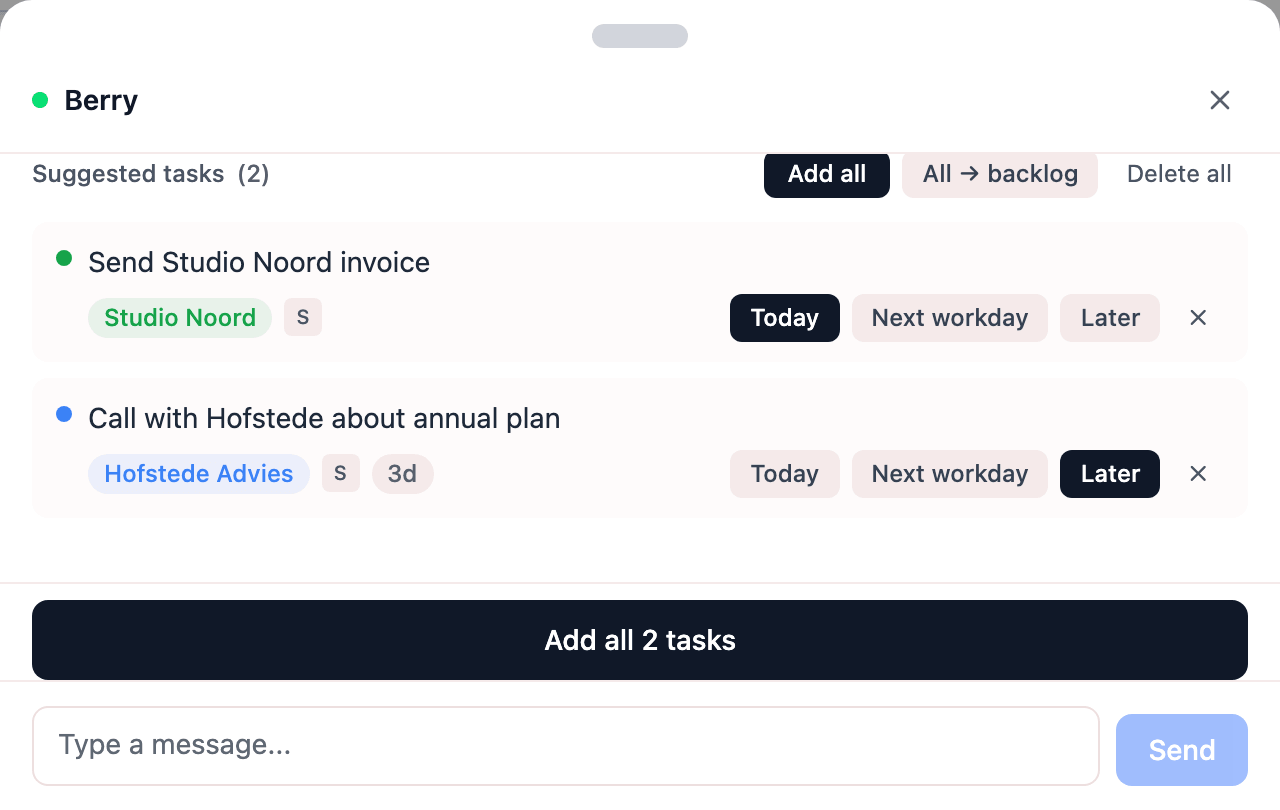
Double-click a title to change it, and click the label or the size to pick another. Then choose where each task goes:
- Today puts it in today's planner.
- Next workday puts it on your next workday.
- Later puts it in your backlog, without a day.
The dark button is what Berry suggests. The cross throws a task away.
With two or more tasks you can handle them all at once. Add all puts each task where Berry suggests. All → backlog puts them all in your backlog, and Delete all throws them away. When adding, tasks under Mentioned in the material, not yours are left out. If you want one of them anyway, add it on its own from there.
How often you can use it
With Pro there's no monthly limit on your brain dumps. On the free plan you get 3 brain dumps per calendar month. Every message you send to Berry counts as one, a follow-up question included. So put everything in one message and go through the suggestions yourself afterwards. Once they're used up, the panel shows you how to carry on with Pro.
The Berry page
Berry also has its own page in the menu, Berry. There you have more room to talk, and you can see what Berry remembers about your clients and projects.