Adding tasks and giving them a size
How to add a task, which day it lands on, what goes under Details and how to pick a size or enter the time yourself.
You add a task in the field above your tasks. Type what you need to do, pick a size and press Enter. Anything you choose along the way can be changed later.
Adding a task

- Type the task. Short is fine, like "Answer client emails". If you don't see any buttons under the field, click in the field first.
- Pick a size. From S to XXL. If you don't pick one, it's M.
- Pick the label. The client you're doing it for, for example. Your default label is already selected.
- Pick the day. Today, Next workday or Later.
- Click Add or press Enter. For a new line in the field, use Shift+Enter.
If you leave before adding the task, your text is still there when you come back. Your browser keeps it on this device.
Which day it lands on
With Today the task goes straight into today's tasks and counts towards the capacity bar. Next workday puts it on your next workday. If you've set workdays of its own for that label, it goes to that label's next day instead. Later puts it in your backlog: on no day at all, until you put it on one yourself.
Once the task is added, the choice goes back to Today. So you only need to think about it when a task isn't for today.
Details
Under Details you can fill in more before you add the task.
- Deadline. Pick a date, or click Tomorrow, End of week, End of month or End of next month. A deadline doesn't put the task on a day. You still choose that with the buttons above.
- Description. A short note with the task, such as what the client actually asked for.
- Project. With Pro you can put the task straight into a project here. You only see the projects for the label you picked, so if you switch to another label afterwards, the project is cleared.
If you close Details while something is filled in, a pink dot appears next to it. Clear all removes everything in one go.
The sizes
Every task has a size, and the size decides how much time the task takes up in your day.
- S
- M
- L
- XL
- XXL
Not sure? Pick the size that comes closest. A size isn't fixed: if a task turns out bigger or smaller, change it on the card.
If you write the time into the task itself, like "2 hours" or "45 min", click Refine. The size jumps to the smallest one that time fits into. That only happens if you haven't clicked a size yet. The same button also strips openers like "I need to" and picks a label when you haven't clicked one yourself and your text names exactly one of your labels. Undo gives you back exactly what you typed.
That part works for everyone. With Pro, Berry then goes over the task as well: it rewrites the title, adds a description when that adds something and fills in a deadline when your text contains a date or a time reference. Berry can also pick a different size or label than you did, even one you clicked yourself. Undo puts everything back the way you typed and chose it.
Entering the time yourself
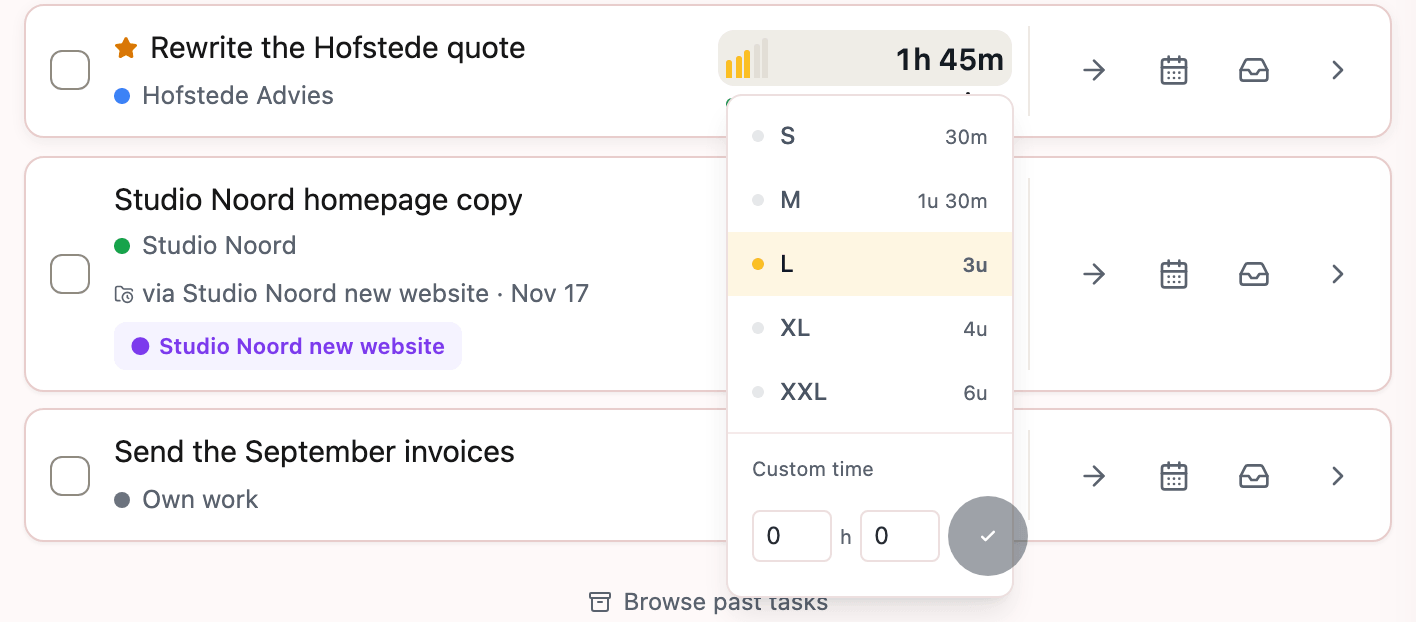
If none of the sizes fit, enter the time yourself. You can do this on a task that's already in your planner, not in the input field.
- On the card, click the size bars.
- Below the sizes you'll find Custom time. Enter the hours and minutes.
- Click the tick or press Enter.
If you've already worked on a task for longer than its size allowed, the same menu opens with the question How much more? You then enter how much more time it needs, instead of picking a size again.