Projects
How to group tasks that belong together into a project, park tasks until you're ready for them and finish a project.
Some tasks belong together. A new website for a client means copy, a brand and a launch, and you want to follow those as one piece of work. That's what projects are for. A project always belongs to one label: the label is the client, the project is a job for that client.
Creating a project
- Go to Projects and click New project.
- Give it a name and pick the Label. You can't change that label later, so choose carefully.
- Add a Target date if you like. It's a soft deadline. Tasks in the project without a date of their own show it as a reference, but TaskBerry doesn't plan them for it.
- Click Save project. TaskBerry picks the colour, unless you choose one.
Adding tasks
Open a task's details and pick the project under Project. You only see the projects for that task's label. For a new task you can do it straight away: click Details while adding it and choose the project.
The card then shows the project's name. If the task has no date of its own and the project has a target date, that date shows too.
What a project shows
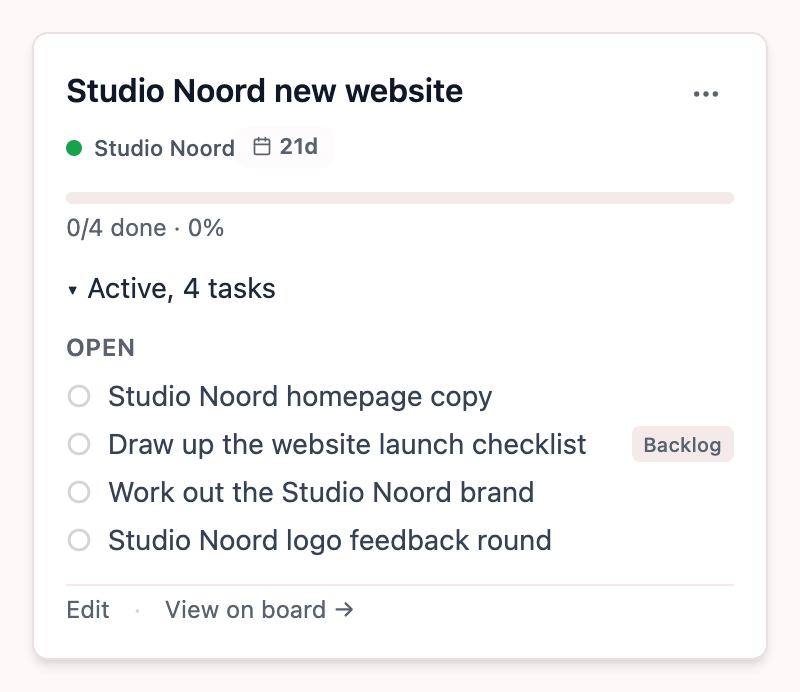
Each project card shows how many tasks are done and how much time you've spent on it so far. Below that are the tasks, grouped into In progress, Waiting, Open and done. A task still sitting in your backlog gets a Backlog tag. View on board shows only this project's tasks in your planner.
Parking tasks
A project often has tasks you won't get to for a few weeks. They don't need to sit in your backlog. When a project task is in your backlog, you can park it in that project. In the cockpit that option is in the card's move menu; in the classic layout there's a small Park button on the card. The task leaves your planner and your backlog and lives only in the project, under its parked tasks.
Ready for it? On the project card, click the small calendar next to the task, Today, and it's back on your day.
Finishing a project
Once every task is done, TaskBerry asks on the project card whether you want to finish the project. You can also do it earlier from the three-dot menu with Mark complete. Any tasks still open then simply stay on your planner.
Finished projects are under Completed, with how many tasks you did and, if you had a target date, whether you made it. Re-open opens a project again. If you only want a project out of sight without finishing it, choose Archive.
A project Berry suggests
Write a brain dump full of work that belongs together and Berry may suggest a project for it. You then see the project name, Suggested new tasks and sometimes tasks you already had that fit in. Untick what you don't want and create the project, or choose Discard. Right after creating it you can still undo it.