Recurring tasks
Have a task come back to your planner on its own, every day, every week or on a set working day of the month. How to set it up and how to change it.
Some tasks keep coming back: planning your week, the admin, your invoices at the end of the month. Turn one into a recurring task once, and TaskBerry puts it in your planner on the right days by itself.
Making a task come back
- Open the details of the task you want to repeat. To do that, click the small angle bracket at the far right of the card (Show details).
- Under Recurrence, click Set recurrence.
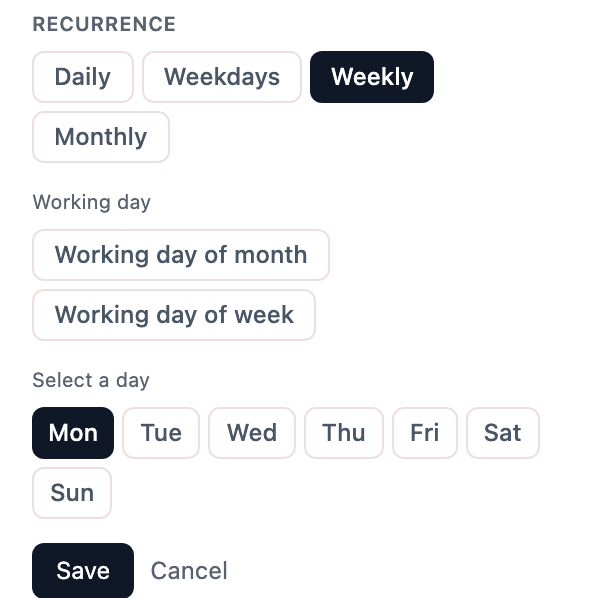
- Choose how often, then the day or days.
- Click Save.
The task you set it on is the first one straight away. From then on the card says Recurring.
How often
- Daily really is every day, weekends included.
- Weekdays lets you pick the days yourself. It only comes on days you work: if you don't work Fridays, it skips them.
- Weekly is one fixed day a week.
- Monthly is a fixed date. If a month doesn't have that day, like the 31st in April, it comes on the last day of that month.
- Working day of month counts your working days from the start or the end of the month. You'll find it under Working day, below the regular options. Click it and it's already set to the first working day of the month. Choose Last in the dropdown for the last working day, and raise the number next to it if you want the second or third. With the last working day, your invoicing always lands on the right day, even when the month ends on a Saturday.
- Working day of week is, for example, the first working day of your week. If you don't work Mondays, that's the Tuesday.
You set which days you work under Account, in Workday and then Per-day schedule. You get to Account through the circle with the first two letters of your email address: at the bottom of the sidebar in the cockpit, top right in the classic view and on your phone. Choose Account & settings. If you haven't set anything there, TaskBerry counts Monday to Friday.
How it gets into your planner
On every day it's due, TaskBerry puts it at the top of today's planner early in the morning.
- If it's already in today's planner, no second one is added.
- If it's in your backlog, TaskBerry brings that one to today instead of making a new one.
- If you didn't finish it last time, it doesn't hang around. The day after, it disappears from your planner, and the next time it's due there's a fresh one. It won't show up under Skipped: that list only has the days you skipped yourself. Any hours you already logged on it stay in your client report.
You can't move a recurring task to another day, because TaskBerry decides its days. You can put it in your backlog, though. On the next day it's due, TaskBerry puts it back in your planner.
One extra time, or one time less
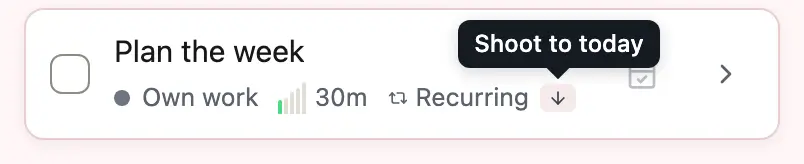
Want it today, while it isn't due until later? Next to Recurring on the card there's a small arrow: Shoot to today. It adds an extra copy to today. If it's already on today, TaskBerry tells you.
Skipping a time goes through Account, in Automations. Every recurring task is listed there with Skip next. TaskBerry shows you the date of the next time and asks whether you want to skip it. On that day it then won't come. The days you skip show up under Skipped afterwards. Clear undoes the skip.
Changing or stopping it
In Automations you can also change the schedule with Edit, switch a task off for a while with the toggle, or delete it. A change to the schedule applies to every time still to come.
You can do it from the card too. In the details, click Remove recurrence and choose:
- Just detach this task: this task becomes an ordinary task, the recurrence carries on.
- Also stop recurring schedule: no new ones come either. The recurrence stays in your list, switched off, so you can turn it back on later.
How many you can have
On the free plan you can create a new recurring task as long as fewer than 3 are switched on. Ones you've switched off don't count. Switching one back on does count: at your limit it stays off and you get a message. To make room for a new one or an old one, switch another one off first. With Pro you can have as many as you like.